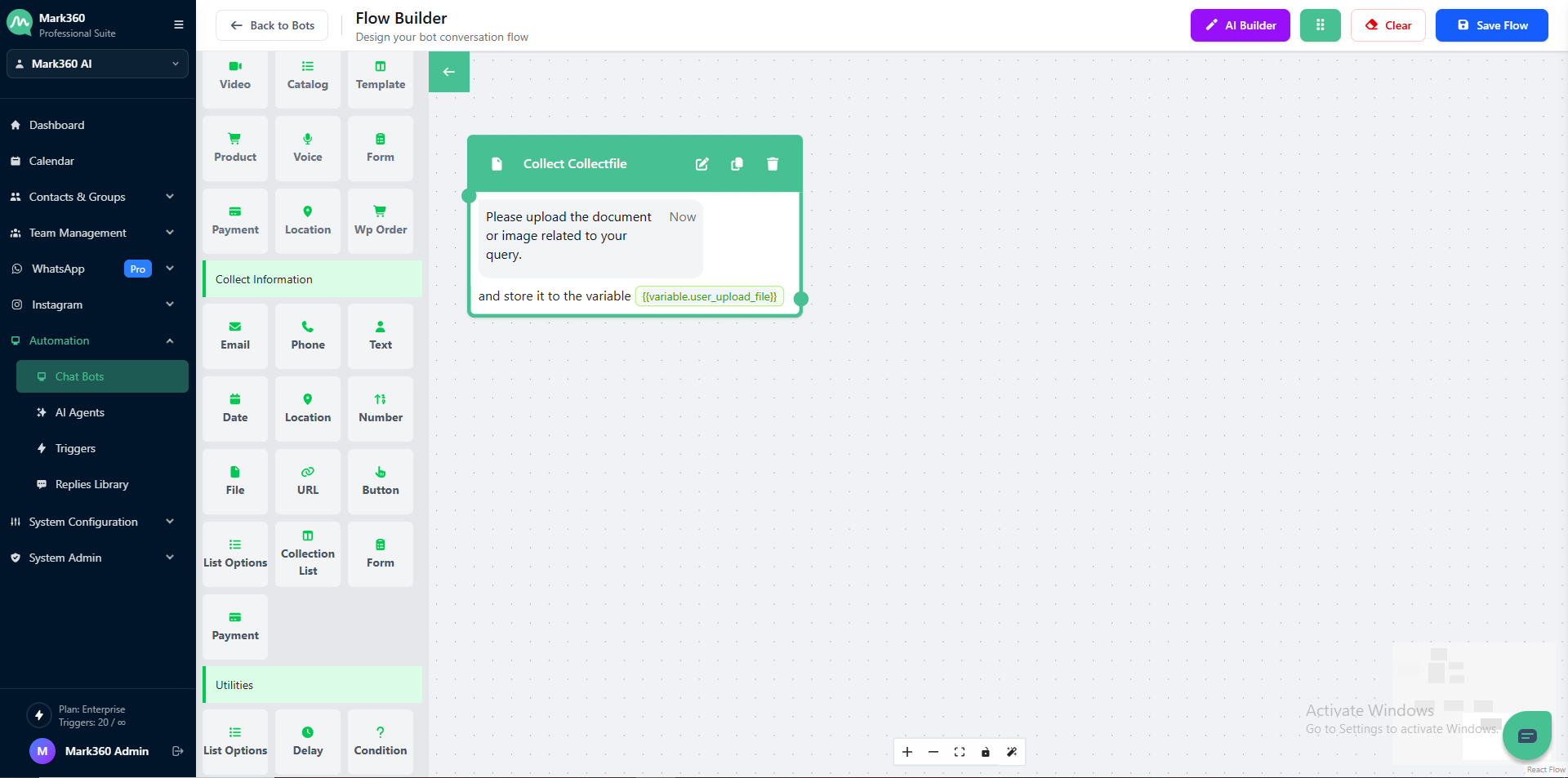
Collect File
Use the Collect File card in Mark360 to receive files or documents directly from your users.
Overview
The Collect File card allows your bot to request and receive files such as documents, images, or PDFs from users during a chat.
This helps you collect necessary attachments like ID proofs, invoices, or product images directly within your chatbot flow.
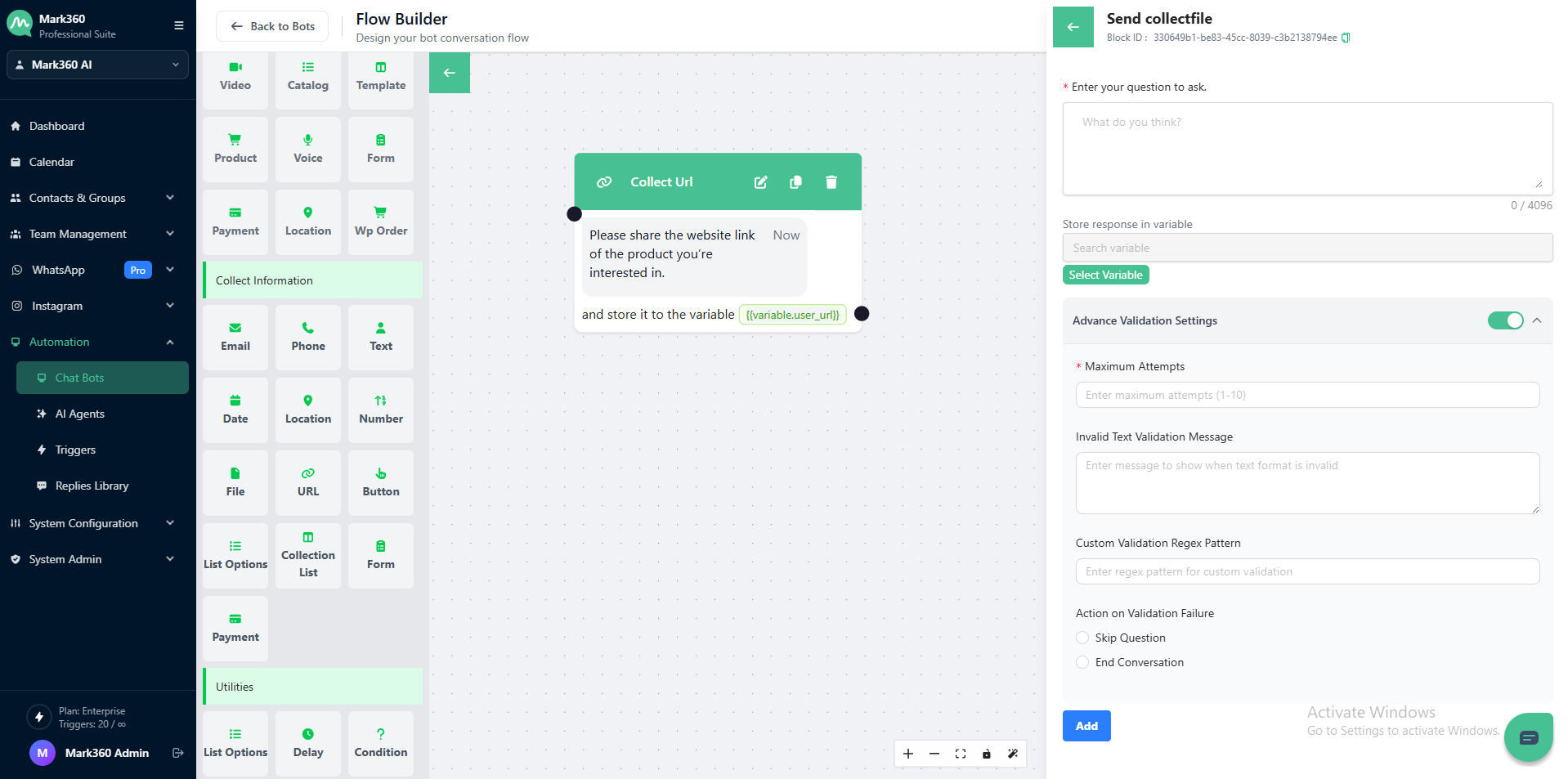
Ask as Text Essentials
Craft a short, clear question that informs users exactly what type of file they need to upload.
Question Text
This is the message displayed to users when asking for their file.
💬 Example Question:
Please upload the document or image related to your query.
Store Response in Variable
Save the uploaded file link or attachment reference to a variable for future use in your automation.
For example: {{variable.user_uploaded_file}}
This variable can later be used to access, process, or forward the uploaded file within your flow.
Advanced Validation Settings
Enable Advanced Validation Settings to ensure user uploads meet your criteria.
Maximum Attempts:
Set how many times users can retry uploading a file.
(Example: 3)
Invalid Text Validation Message:
Customize the message shown when the uploaded content is not in the expected format.
(Example: “Please upload a valid file type.”)
Custom Validation Regex Pattern:
Define custom regex validation to match file URL patterns or file types.
Example Regex for File Validation:
^https?:\/\/.*\.(jpg|jpeg|png|pdf|docx|xlsx)$
Action on Validation Failure
Choose what happens if the user repeatedly uploads an invalid or unsupported file:
-
Skip Question — Continue to the next step in the conversation.
-
End Conversation — Stop the chat flow if the file upload fails after all attempts.
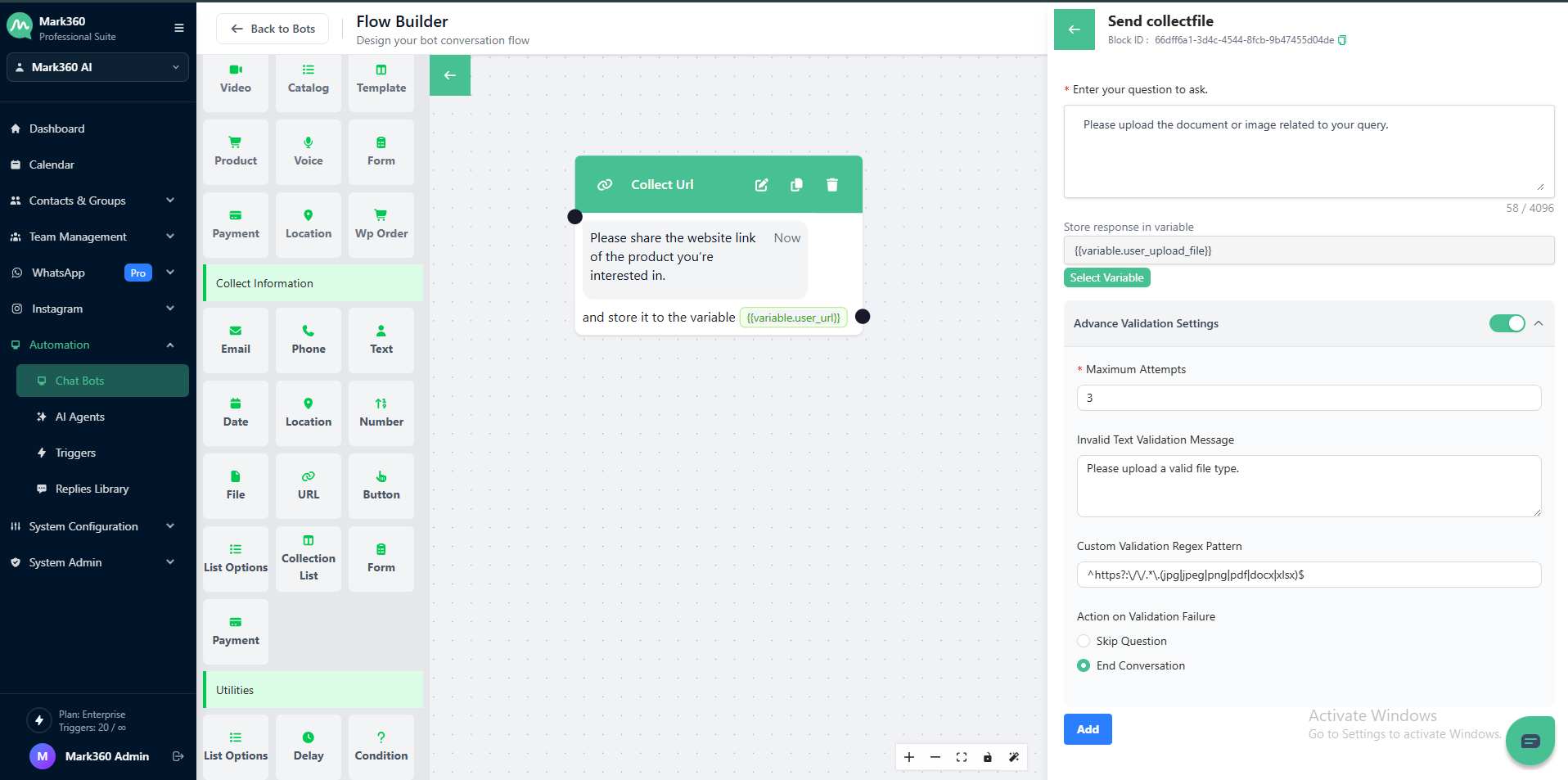
In Mark360 Bot Interface: